
Digital Life · Smartphones & Computers · iPhone Basics
How to Clear Cache on iPhone
Clear cache on iPhone by removing Safari history and website data, deleting website data only, checking app storage, and offloading apps only when needed.
To clear cache on iPhone, open Settings, go to Apps, choose Safari, then tap Clear History and Website Data. To keep Safari history, use Advanced в†’ Website Data в†’ Remove All Website Data instead. For other apps, check the app settings or use iPhone Storage.
- Time needed3–8 minutes
- DifficultyEasy
- Works oniPhone, Safari, iOS Settings, installed apps
- Last checkedJune 2026
Before you start
Clearing cache can make Safari or an app load fresh data again, but it is not the same as resetting your iPhone. It mainly removes temporary website files, cookies, browsing history, or app-specific stored data.
Clearing Safari history and website data can sign you out of websites and remove saved site preferences. Read the confirmation screen before you continue.
Step-by-step guide
-
Open iPhone Settings
Unlock your iPhone and open the Settings app. On newer iOS versions, Apple places Safari under Apps, so do not worry if Safari is not visible immediately on the first Settings screen.
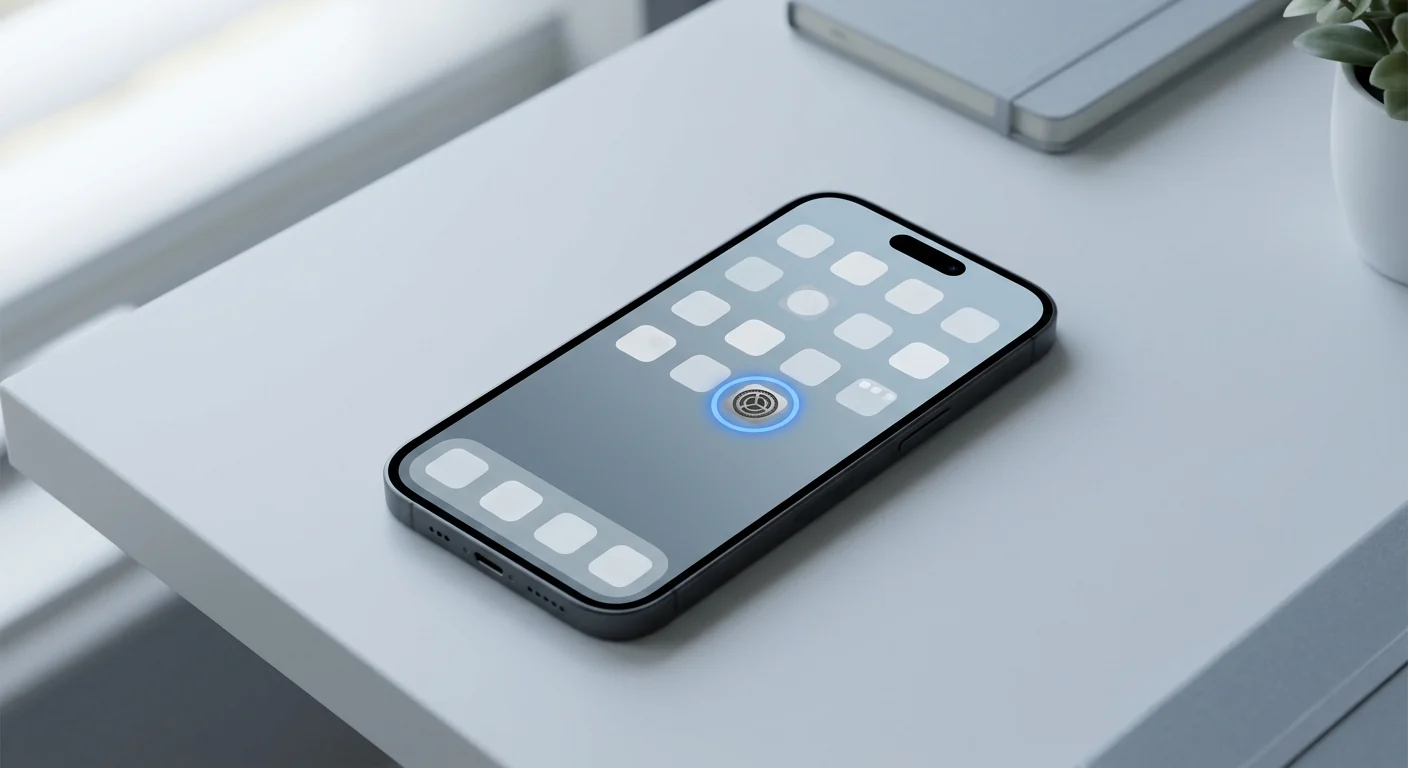
Start in the Settings app, where Safari and app storage options are managed. -
Open Safari settings
Scroll to Apps, tap it, then select Safari. If your iPhone uses an older Settings layout, you may see Safari directly in the main Settings list.
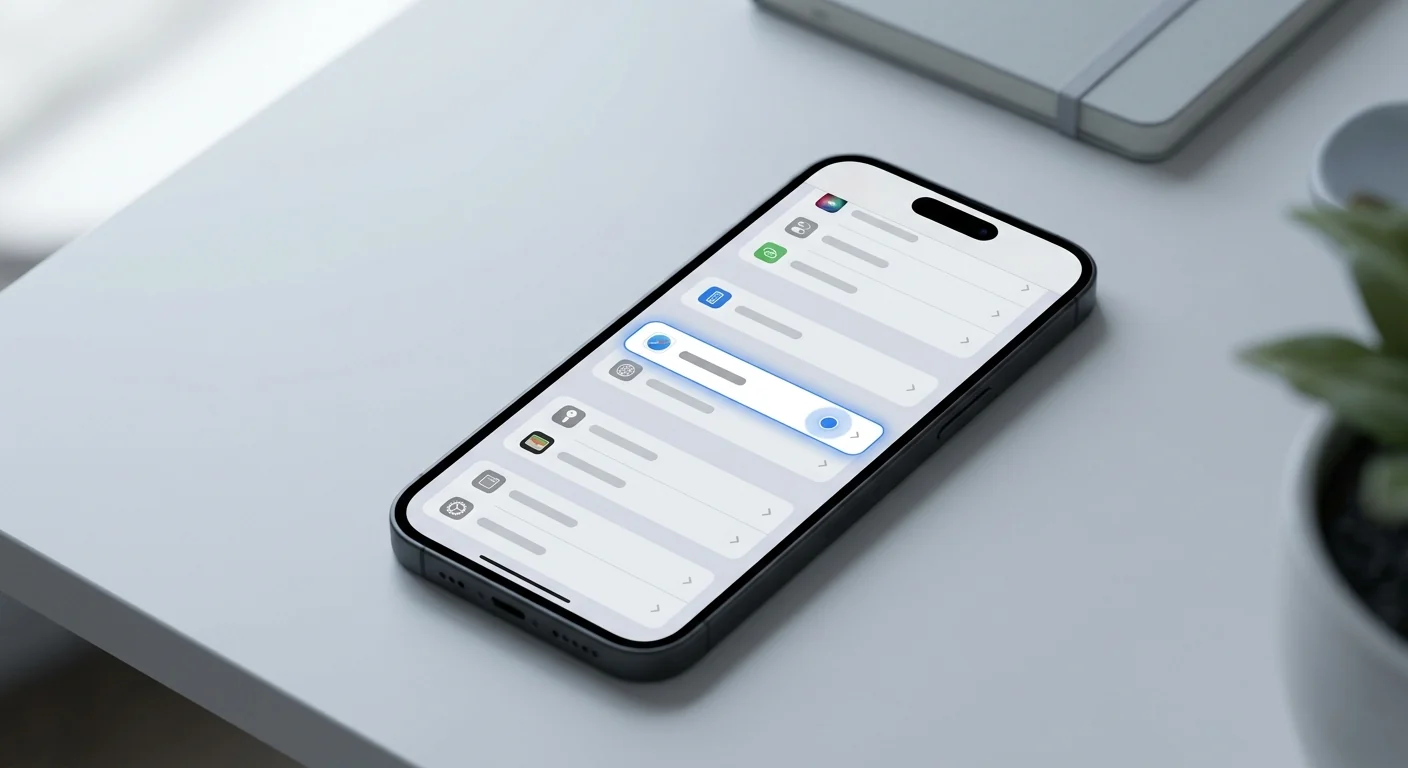
Open Safari settings to clear browsing history, cookies and cached website data. -
Clear Safari history and website data
Tap Clear History and Website Data. Choose the available time range if iOS shows one, then confirm. This is the simplest way to remove Safari cache together with history and cookies.
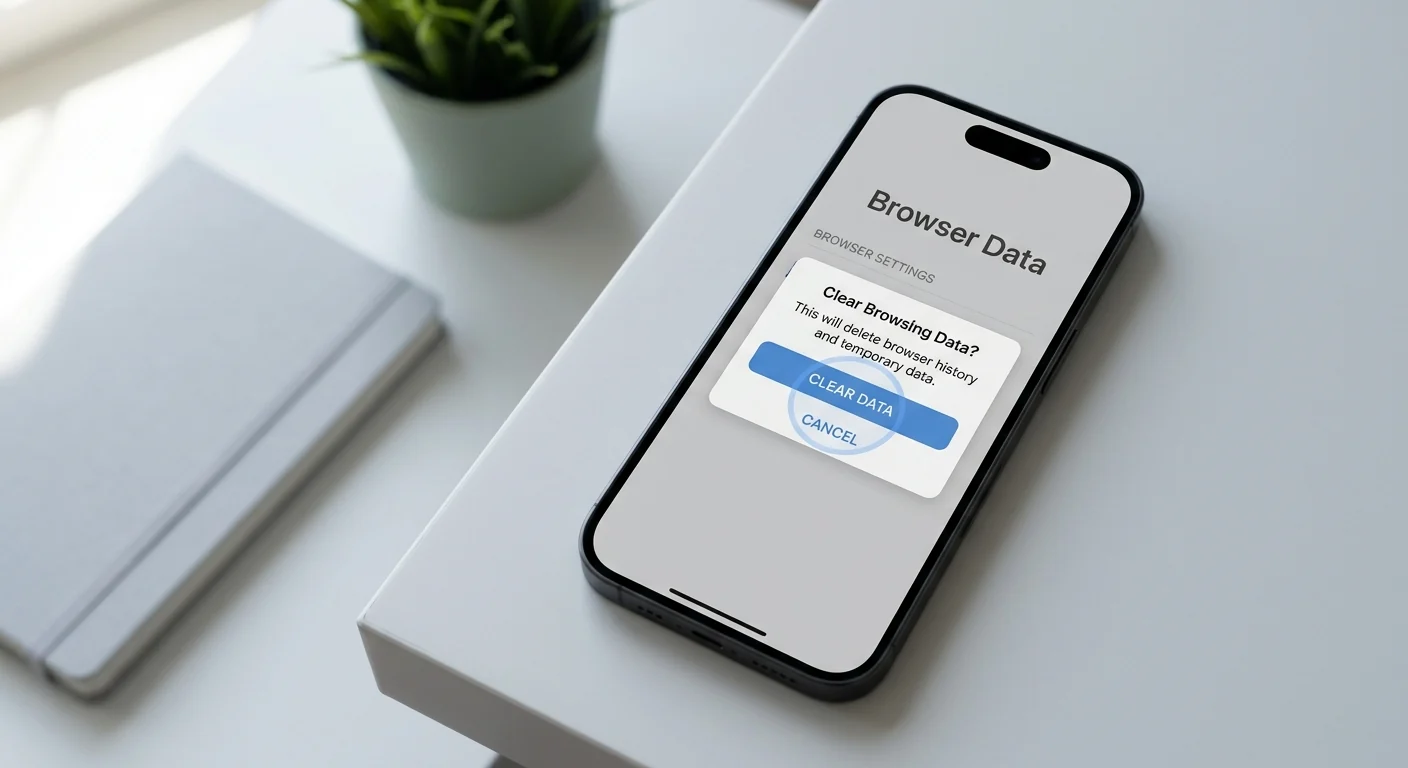
This removes Safari history, cookies and cached website data from the selected time range. -
Remove website data only if you want to keep history
To keep browsing history, go to Safari в†’ Advanced в†’ Website Data, then choose Remove All Website Data. If the button is greyed out, there may be no data to remove or Screen Time restrictions may be active.
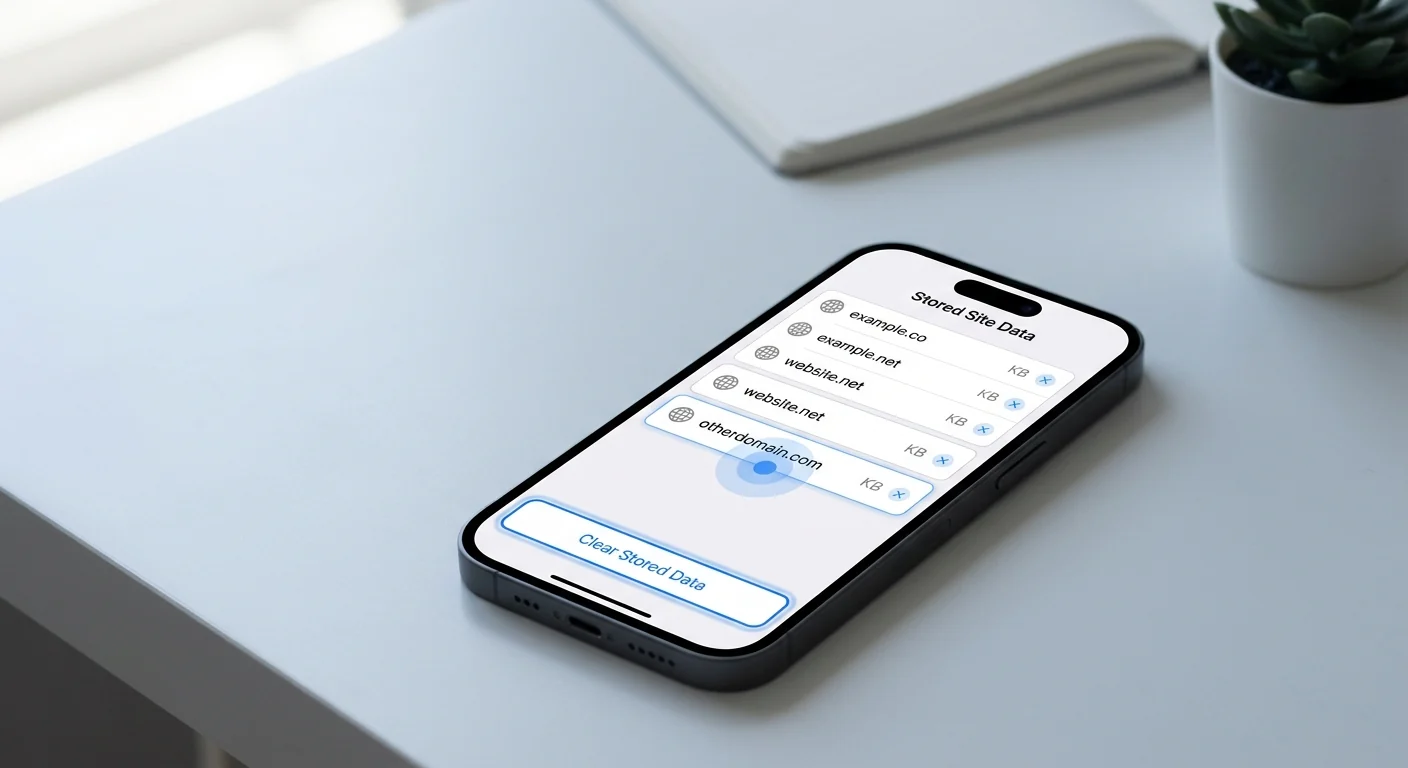
Use Website Data when you want to clear cookies and cache without clearing browsing history. -
Check app storage for non-Safari apps
For apps like social networks, messengers or browsers, open the app’s own settings and look for cache, storage or downloads. You can also check Settings → General → iPhone Storage. Use Offload App only when you understand what will stay and what will be removed.
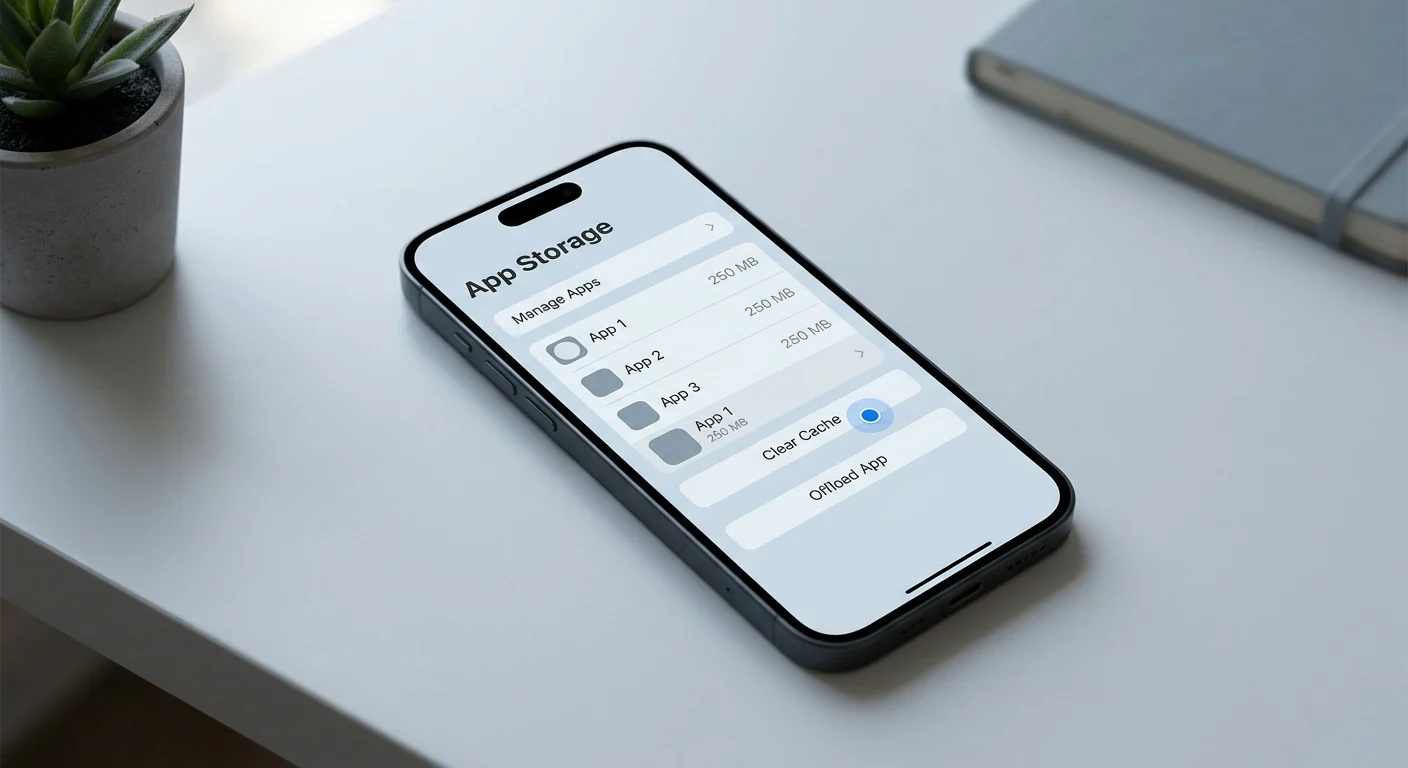
For apps other than Safari, use the appРІР‚в„ўs own settings or iPhone Storage options.
If one website behaves strangely, try clearing only that websiteРІР‚в„ўs data first. It is less disruptive than clearing all Safari history and cookies.
Common problems
| Problem | What to try |
|---|---|
| The clear button is greyed out | Check whether there is any website data to remove. Also check Screen Time content restrictions. |
| Safari still loads an old page | Close Safari completely, reopen it, and reload the page after clearing website data. |
| An app still uses too much storage | Open the appРІР‚в„ўs own storage settings, delete downloaded files, or reinstall the app if you are sure your data is backed up. |
| You were signed out of websites | This is expected after removing cookies. Sign in again on sites you still use. |
FAQ
Does clearing cache delete my photos or contacts?
No. Clearing Safari history, cookies and website data does not delete photos, contacts, messages or installed apps.
Will I be signed out of websites?
Yes, it can happen. Removing cookies and website data may sign you out of websites and remove saved site preferences.
Can I clear cache for every iPhone app at once?
Not usually. iOS does not offer one universal cache button for all apps. Use each app's settings, delete and reinstall the app, or offload apps when appropriate.
What if the clear button is greyed out?
Apple notes that this can happen when there is no website data to clear or when Screen Time web content restrictions are active.