
Digital Life · Smartphones & Computers · Android Basics
How to Free Up Space on Android
Free up space on Android by checking storage, removing old downloads, clearing app cache carefully, backing up photos, and uninstalling apps you no longer use.
Before you start
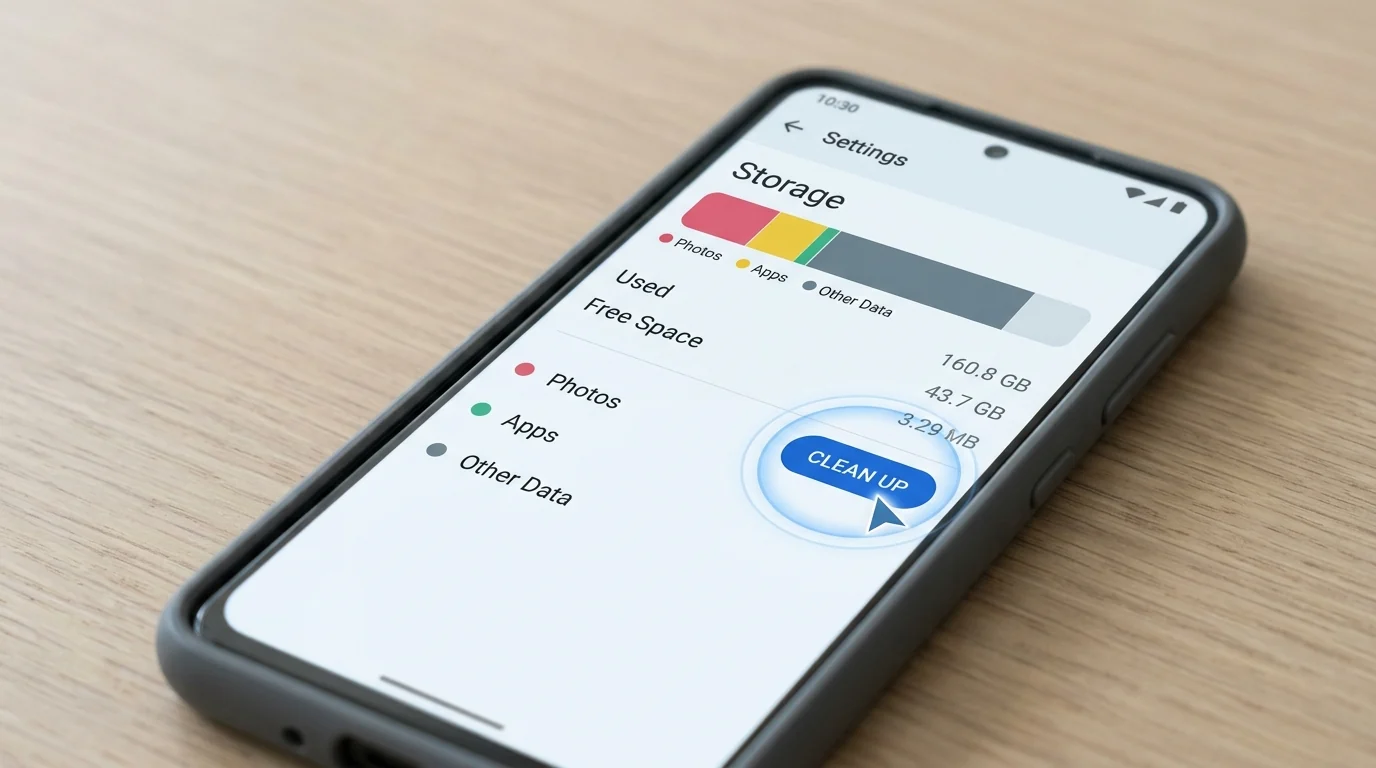
To free up space on Android, open Storage settings, check what uses the most space, remove old downloads, clear large app caches carefully, back up photos and videos, and uninstall apps you no longer use.
Make sure you have enough time to finish the task without rushing. If the task changes settings, data, or household equipment, check the result before moving on.
Step-by-step instructions
1. Check what is using storage
Open storage settings and review which apps, photos, videos, and downloads use the most space.
2. Remove unnecessary downloads
Delete old downloaded files, duplicate media, and large items you no longer need.
3. Clear app cache carefully
Clear cache for apps that store a lot of temporary data, but avoid deleting important app data unless you understand the effect.
4. Move photos and videos
Back up large media files to a safe location before removing local copies from the device.
5. Review apps you no longer use
Uninstall apps that you do not need, especially large games or media apps.
Quick checklist
- Prepare what you need before starting.
- Follow the steps in order.
- Avoid changing unrelated settings or using unnecessary tools.
- Check the result before you finish.
Common mistakes to avoid
- Skipping the preparation step.
- Changing too many things at once.
- Ignoring warnings or confirmation messages.
- Forgetting to verify that the task worked.
FAQ
Is this safe for beginners?
Yes. The guide uses simple steps and avoids risky changes unless they are clearly explained.
What should I do if the result is not as expected?
Go back through the checklist, undo the last unnecessary change if possible, and repeat the safest step first.