
Digital Life · Family Tech · Parental Controls
How to Set Up Parental Controls on Android
Set up Android parental controls with Google Family Link by preparing parent and child accounts, connecting the child device, and reviewing app approvals, screen time and location.
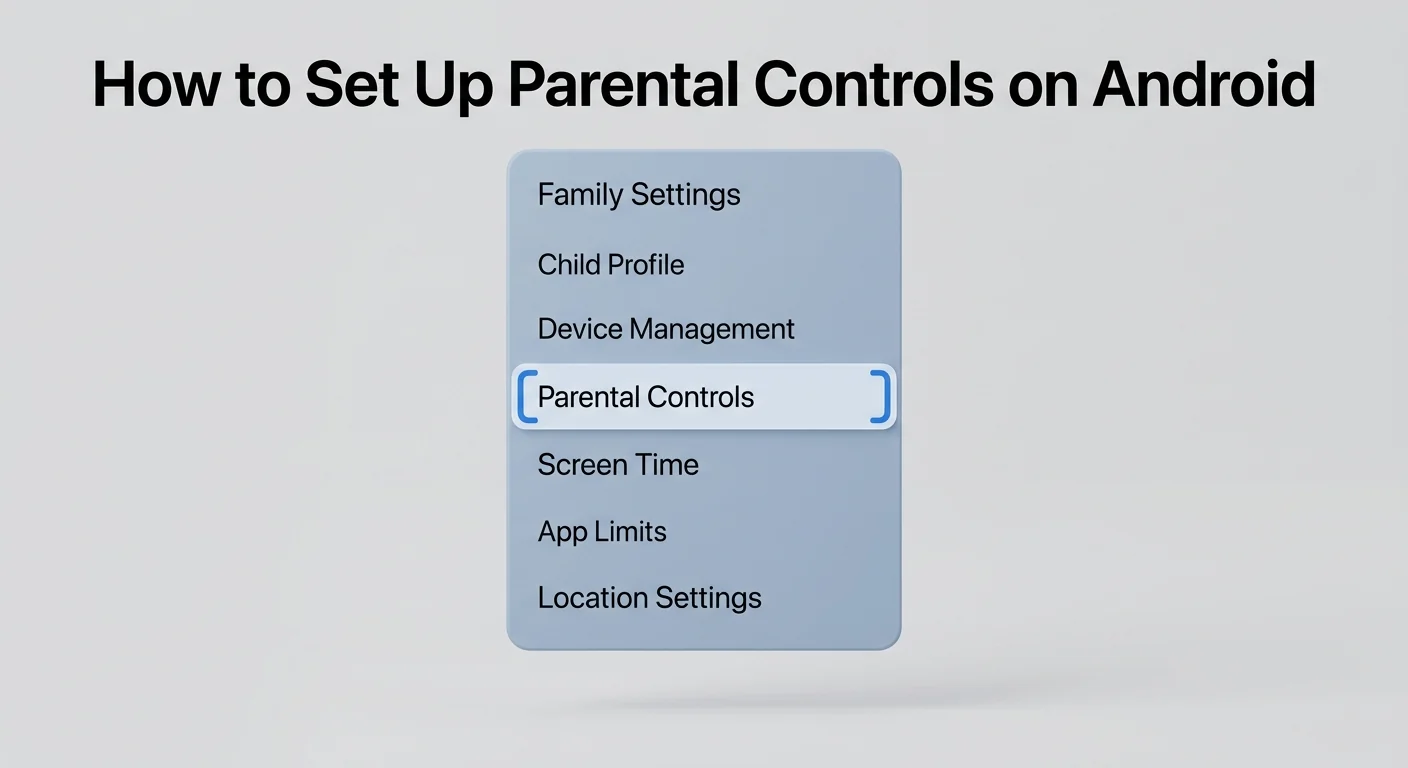
To set up parental controls on Android, use Google Family Link with your parent Google Account, add or confirm the child account, connect the child Android device, then review app approvals, content settings, screen time and location options.
- Time needed10–20 minutes
- DifficultyEasy
- Works onAndroid, Google Family Link, Google Play, child Google Account
- Last checkedJune 2026
Before you start
Prepare the parent Google Account, the child Google Account, the child Android phone, and a stable internet connection. Keep both devices nearby because setup may require confirmation steps on both sides.
Parental controls help manage a child device, but they are not a replacement for supervision, age-appropriate rules and regular conversations about online safety.
Step-by-step guide
-
Install or open Google Family Link
On the parent phone, install or open Google Family Link. Sign in with the parent Google Account that will manage the family group and the child’s device settings.
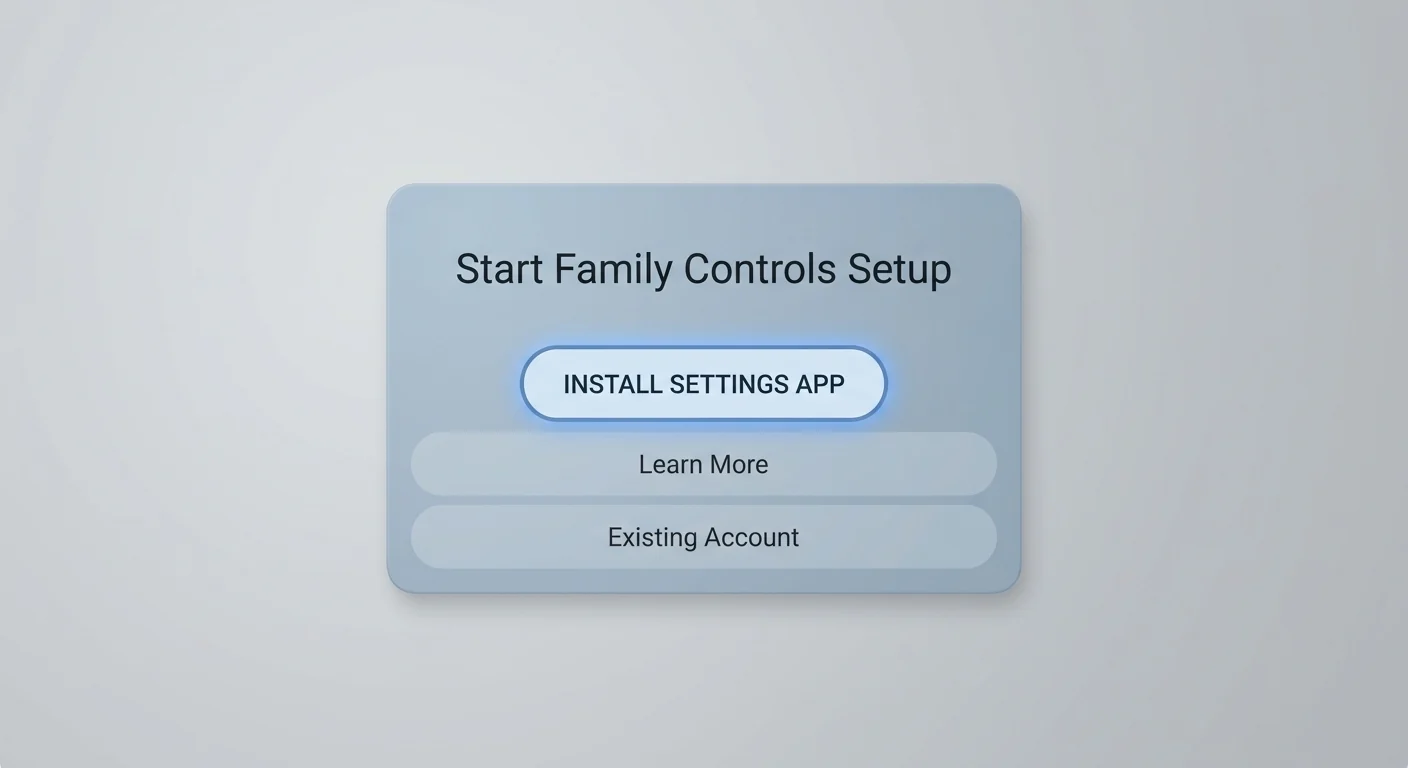
Start with Family Link on the parent device or the parental controls setup flow on Android. -
Add or confirm the child account
Add the child account or choose an existing supervised child account. Check the name and email address carefully so you do not apply controls to the wrong account.
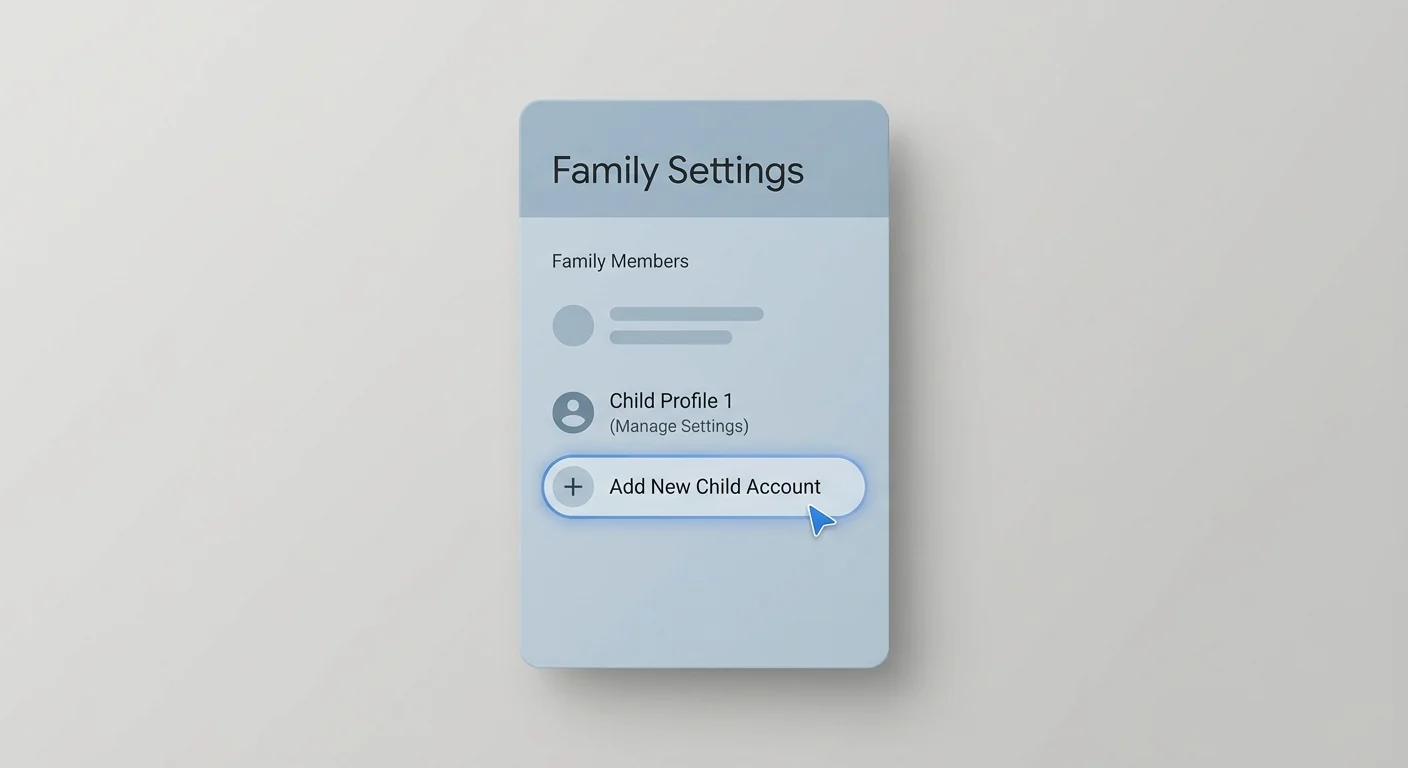
Use the correct child Google Account before connecting the Android device. -
Connect the child Android device
On the child Android device, sign in with the child Google Account and follow the supervision prompts. You may need the parent Google Account password to approve setup or changes.
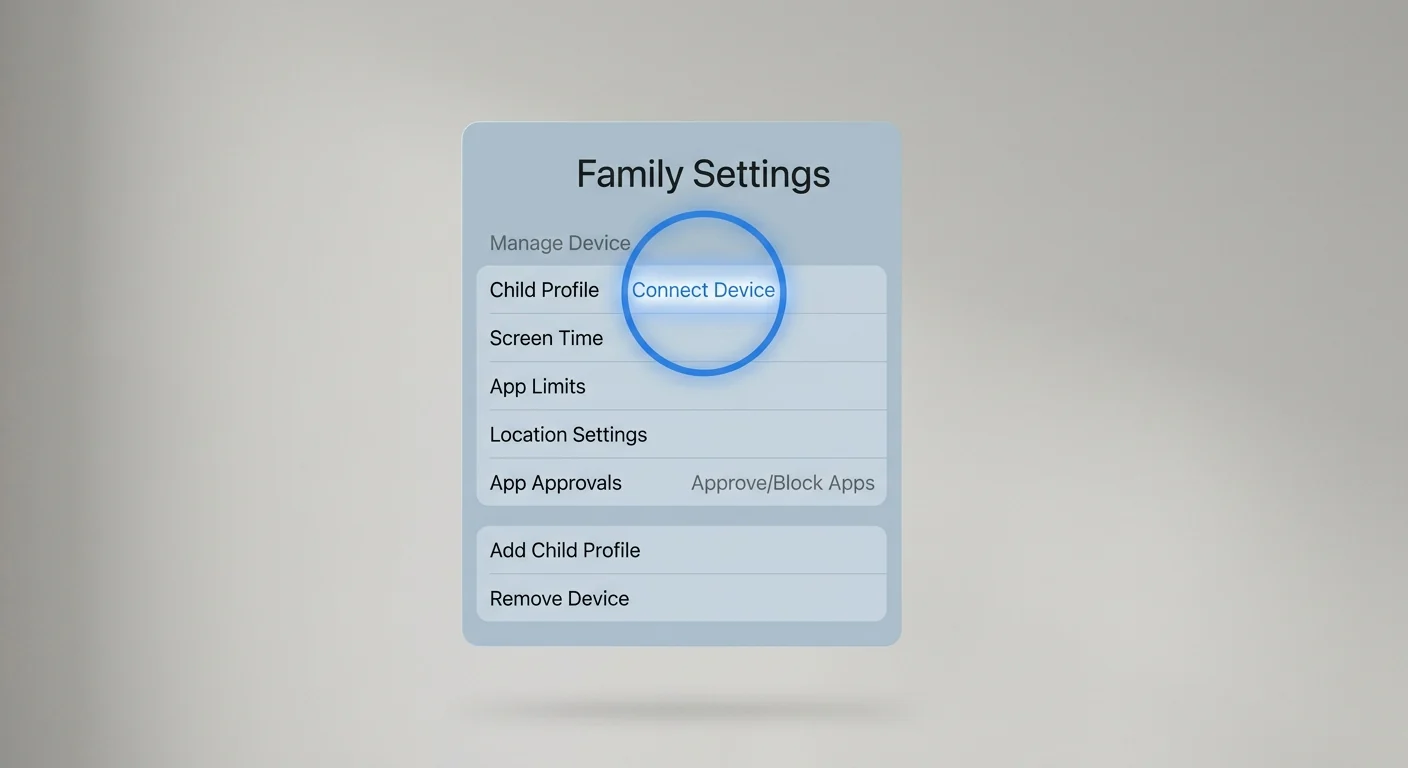
Follow the setup prompts on both the parent phone and child Android device. -
Set app approvals and content settings
Open the Family Link controls and review app approvals, Google Play settings, Chrome or web settings, and YouTube-related options. Choose settings that match the child’s age and your family rules.
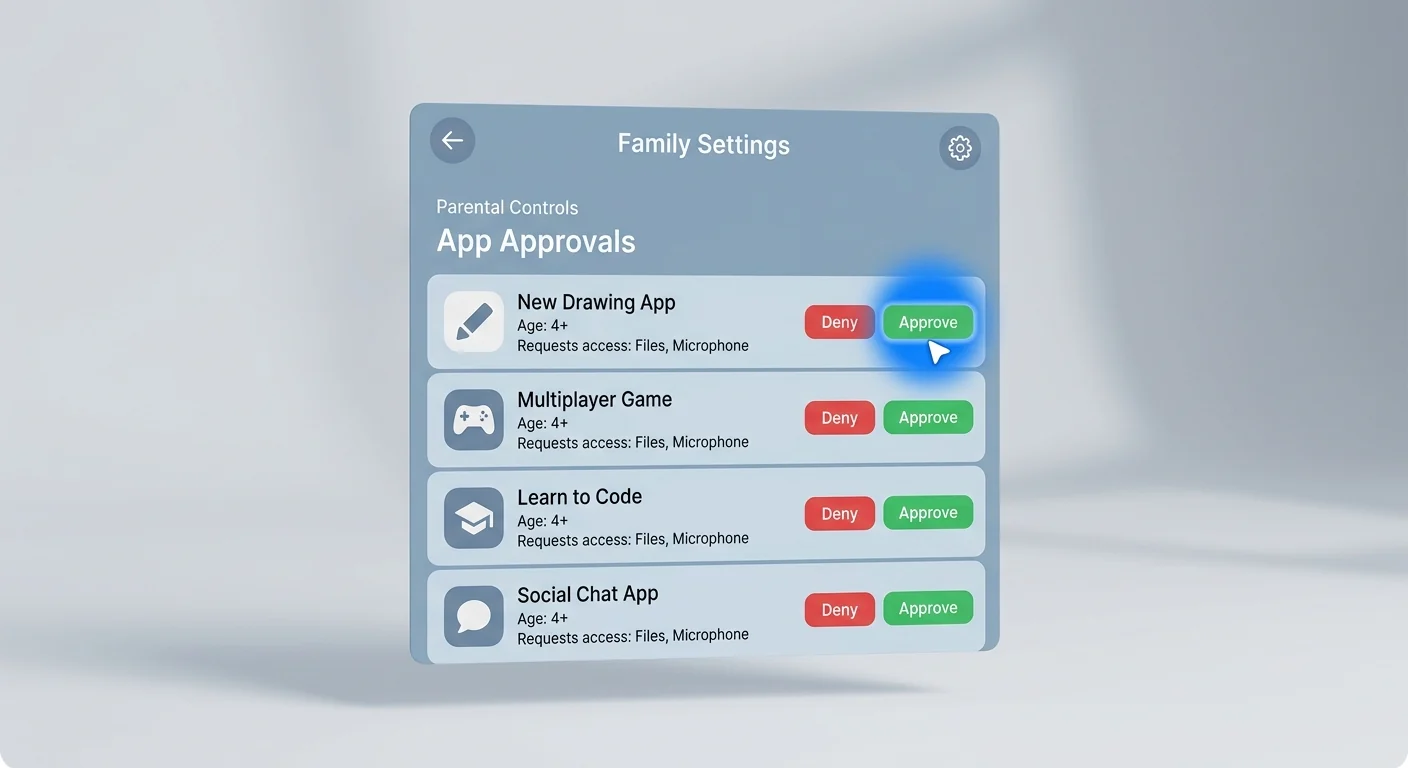
Review app install approvals and content-related settings before handing over the device. -
Review screen time and location
Set daily limits or downtime if needed. Then review location settings and notifications. Test the child phone once after setup to make sure apps, calls, school tools and emergency access still work as expected.
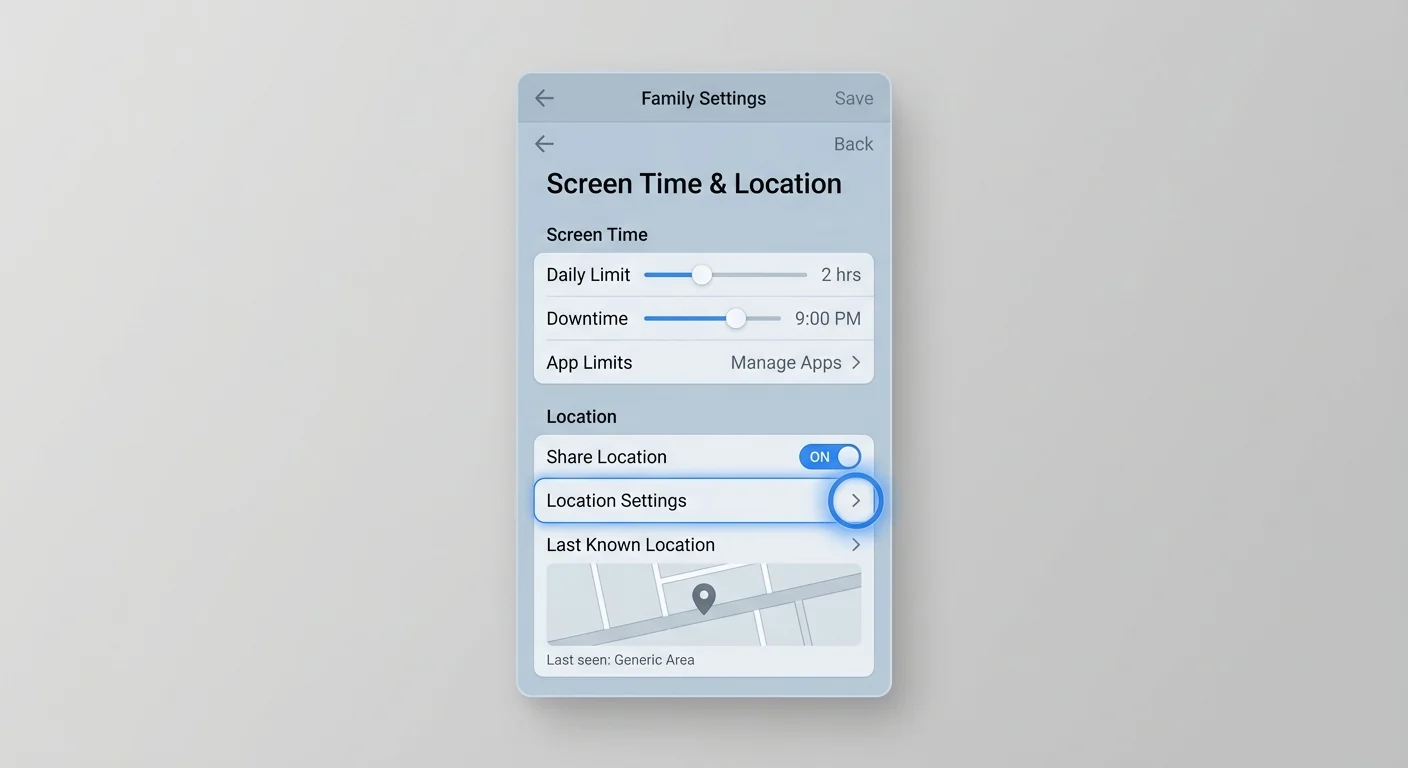
Finish by checking screen time limits, downtime and location settings.
Write down the family rules before changing settings. It is easier to choose limits when you already know what should be allowed on school days, weekends and at night.
Common problems
| Problem | What to try |
|---|---|
| The child device does not appear | Check that the child is signed in with the correct Google Account and that the phone has internet access. |
| Setup asks for a password | Use the parent Google Account password connected to the family group. |
| App approvals do not work as expected | Review Google Play settings and confirm the child account is supervised. |
| Location is not shown | Check location permission, internet connection, battery saver settings and whether the child device is online. |
| The settings feel too strict | Start with simple limits, test the device, then adjust rules after a few days. |
FAQ
Do parental controls work on every Android phone?
Google says parental controls work on Android devices where the child is signed in to their Google Account, but exact options can depend on device, Android version and account setup.
Do I need the parent Google Account password?
Yes. Google says a parent in the family group needs to use their Google Account password to set up or change a child's parental control settings.
Can I block every unsafe website or app?
No parental control system is perfect. Use Family Link as one layer together with age-appropriate rules, conversations and regular review.
Can I manage screen time and app approvals?
Yes. Family Link can help manage screen time, app approvals and content-related settings, depending on the child account and device.