
Digital Life · Account Management · Email Safety
How to Stop Spam Emails
Stop spam emails by marking junk correctly, unsubscribing only from trusted senders, blocking repeat senders, and using filters safely.
Before you start
To stop spam emails, mark unwanted messages as spam, unsubscribe only from trusted senders, block repeat senders, create simple filters, and avoid exposing your main email address publicly.
Make sure you have enough time to finish the task without rushing. If the task changes settings, data, or household equipment, check the result before moving on.
Step-by-step instructions
1. Mark spam correctly
Use the spam or junk button instead of only deleting suspicious messages.
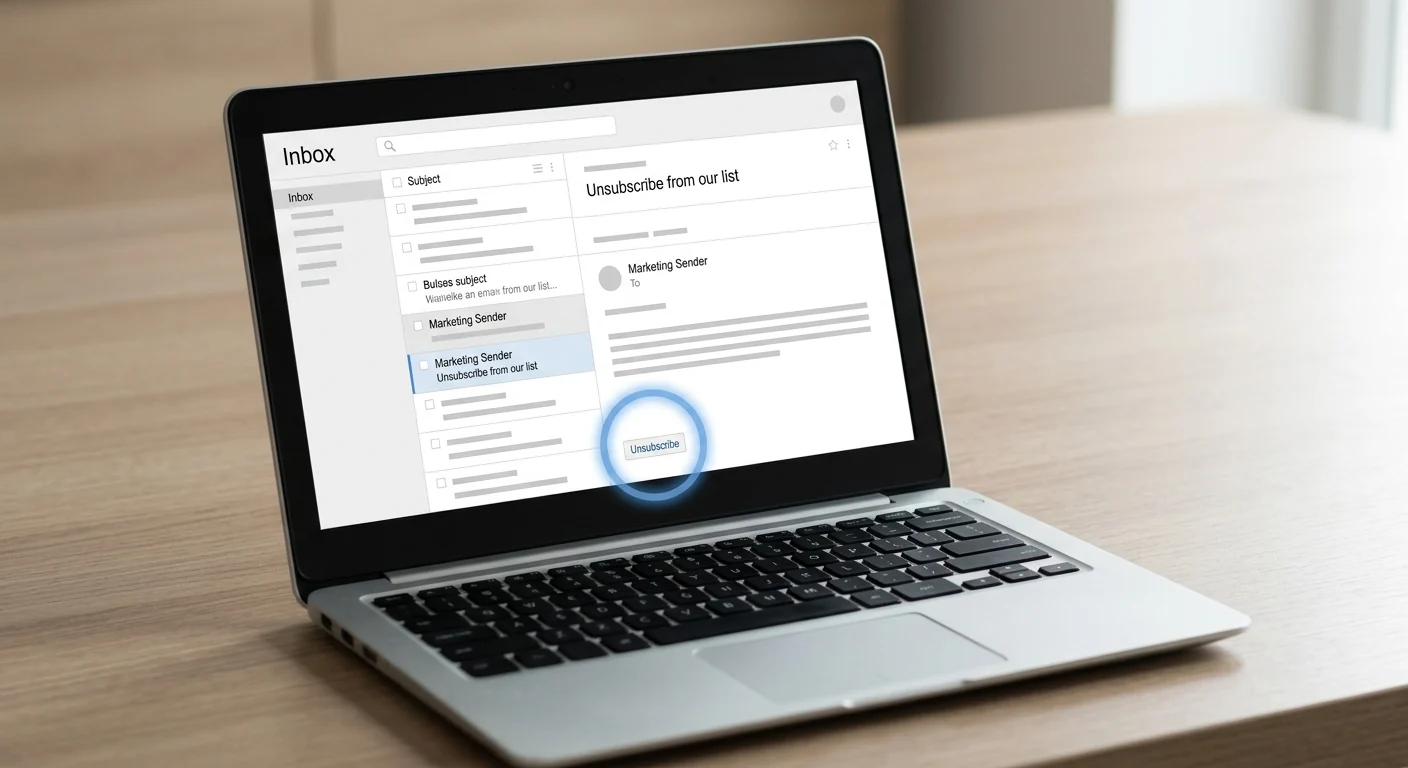
2. Unsubscribe carefully
Use unsubscribe links only for senders you recognize and trust.
3. Block repeat senders
Block senders that repeatedly send unwanted mail.
4. Create filters
Use mail filters to move obvious spam patterns out of your inbox.
5. Protect your address
Avoid publishing your main email address on public pages or unsafe forms.
Quick checklist
- Prepare what you need before starting.
- Follow the steps in order.
- Avoid changing unrelated settings or using unnecessary tools.
- Check the result before you finish.
Common mistakes to avoid
- Skipping the preparation step.
- Changing too many things at once.
- Ignoring warnings or confirmation messages.
- Forgetting to verify that the task worked.
FAQ
Is this safe for beginners?
Yes. The guide uses simple steps and avoids risky changes unless they are clearly explained.
What should I do if the result is not as expected?
Go back through the checklist, undo the last unnecessary change if possible, and repeat the safest step first.